History
Calculations will appear here
Last 10 results · click to reuse
Use this browser pad when you need Deg/Rad trig, powers, roots, logs, or scientific notation beside a drawing without opening a full math package. It goes past four-function arithmetic: build one expression with parentheses, then chain the next step with Ans, memory, or History.
This TaskJunction scientific calculator is free and local. Tap the keypad or type after you focus the display. Work in degrees or radians, keep the last ten equals results, and clear the current line with AC without wiping history. Nothing is uploaded and no account is required.
It sits in the Utilities Calculators group next to tools such as the unit converter. Reach for it for fixture-angle and datasheet checks. It is not a computer algebra system and it is not a substitute for certified design software on safety-critical sign-off.
Formula
- Set Deg for drawing angles. Then sin(30) gives 0.5. Use Rad only when your angle is already in radians.
- Multiply and divide before you add or subtract. So 2 + 3 × 4 is 14. For 20, type (2 + 3) × 4.
- The % key divides by 100. So 50% is 0.5. It is not “10% of 200.”
- Use x², √, and similar keys for powers and roots. ln is natural log. log is log base 10.
- EXP is for big or tiny numbers in scientific notation. Ans brings back your last answer after =.
Quick check for Deg vs Rad:
| Mode | When to use | Example |
|---|---|---|
| Deg | Drawing and fixture angles | sin(30) = 0.5 |
| Rad | Physics notes or code in radians | sin(π/6) = 0.5 |
How it works
Build expressions on the keypad or keyboard with parentheses, Deg/Rad trig, powers, roots, logs, factorial, percent, and EXP. Press = to evaluate. Ans, memory, and History (last ten results) help you chain work. All math runs locally in the browser.
Click the display, then tap the keypad or type. The expression line builds token by token. The large value updates when the expression is complete enough to evaluate. Press = to commit a line into History (last ten results). Nothing is uploaded. AC clears the current expression only.
Degrees vs radians
Set Deg or Rad before you touch trig. Drawing and fixture angles are almost always in degrees. Physics notes and many code libraries use radian measure. Mix them up and sin(30) stops being 0.5.
In Deg mode, sin(30) is 0.5. That matches the unit-circle fact from first-year trig. In Rad mode you need π/6 for the same result. The Deg/Rad control is in the top row. Inverse functions return angles in the active mode, so asin(0.5) is 30 when Deg is on.
Same sine, different mode:
| What you type | Mode | Result |
|---|---|---|
| sin(30) | Deg | 0.5 |
| sin(30) | Rad | About −0.988 (not 0.5) |
| sin(π/6) | Rad | 0.5 |
| asin(0.5) | Deg | 30 |
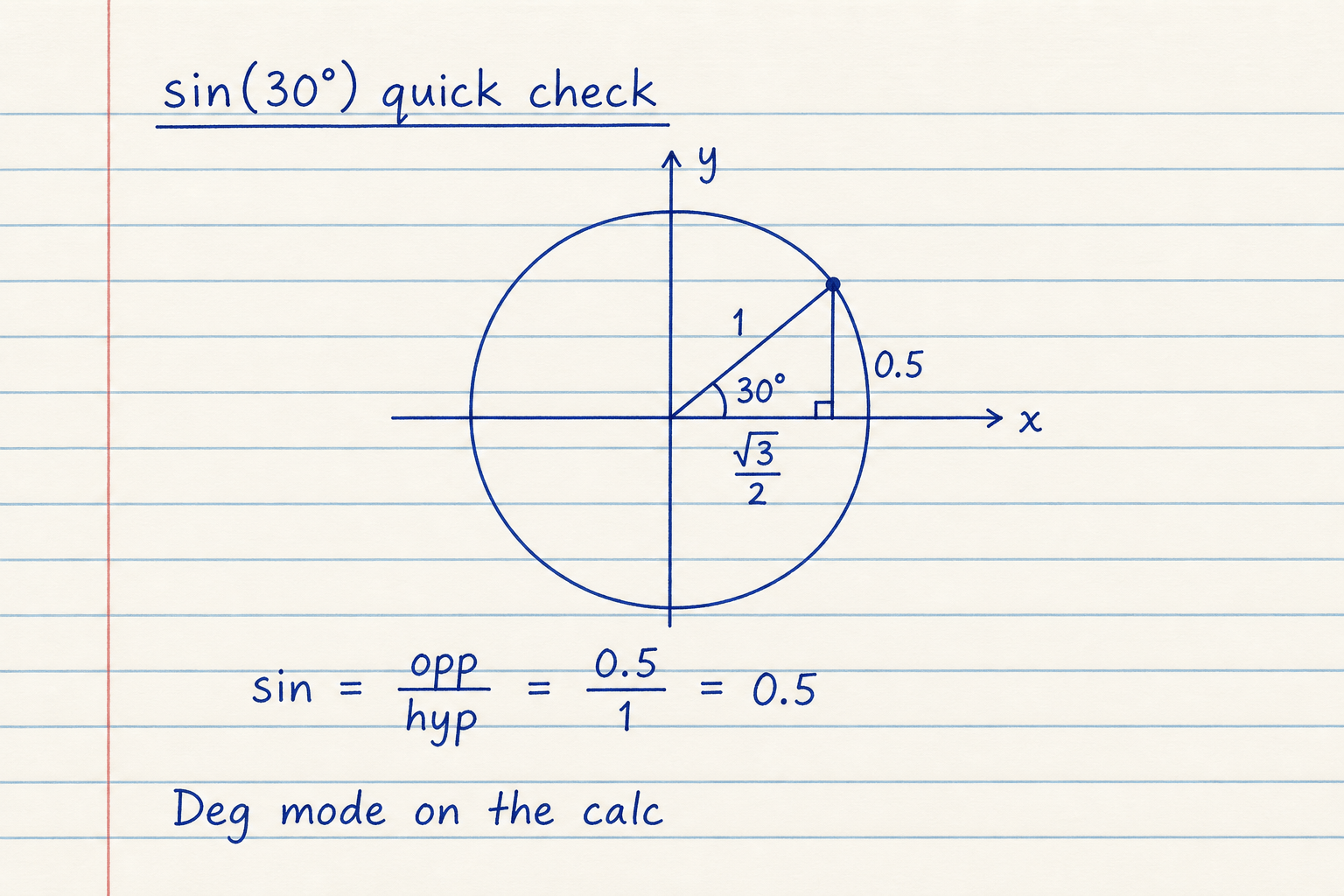
The sketch shows a unit circle with a 30° angle. The opposite side is 0.5 and the hypotenuse is 1, so sine is opposite divided by hypotenuse: 0.5 ÷ 1 = 0.5.
That is exactly what this pad returns when Deg is selected and you enter sin(30). If Rad is on instead, typing 30 means 30 radians, not 30 degrees, so the result is wrong for a drawing angle.
Order of operations
This is an expression calculator. (2 + 3) × 4 equals 20. Without parentheses, 2 + 3 × 4 equals 14 because multiplication runs before addition. That follows the usual order of operations (BODMAS/PEMDAS) from school.
Keys such as sin, ln, and √ open an implied parenthesis so you can keep typing the argument. Close it yourself when you need a longer chain after the function.
Why parentheses change the answer:
| Expression | What runs first | Result |
|---|---|---|
| 2 + 3 × 4 | Multiply | 14 |
| (2 + 3) × 4 | Add inside parentheses | 20 |
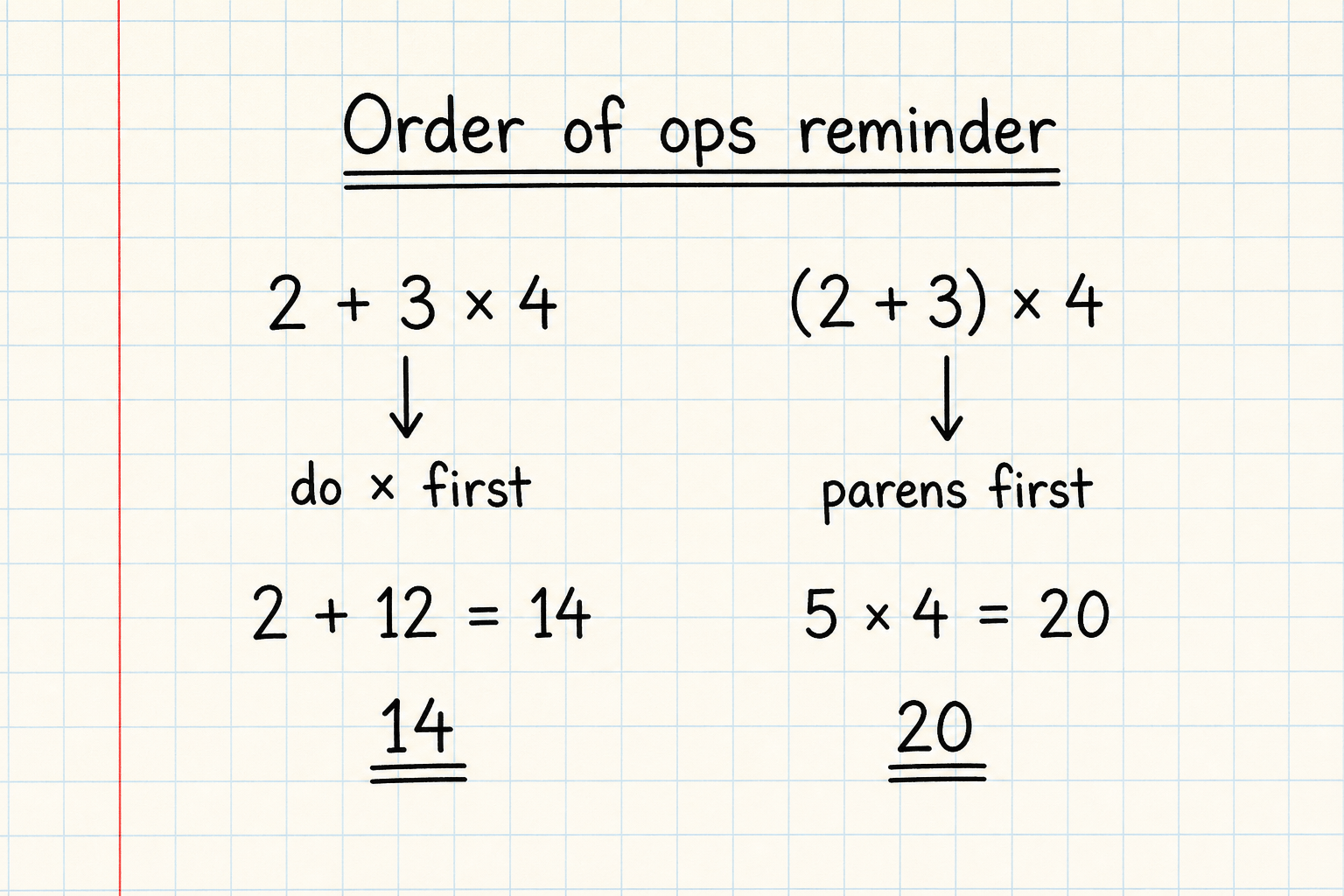
The note on the left shows 2 + 3 × 4. Multiplication runs first, so you get 2 + 12 = 14. That is the normal order on this calculator.
The note on the right wraps the sum first: (2 + 3) × 4. Parentheses force the add step before multiply, so the result is 20. Same digits, different grouping.
Deg, percent, and Error traps
Wrong angle mode is the classic miss. Confirm Deg for drawing angles before you chase a formula error.
Percent is divide by 100 in place. It is not the phone-calc “10% of 200” shortcut. For ten percent of 200, multiply by 0.10 yourself.
- Incomplete expressions stay blank in the live preview until they can evaluate
- ÷0, √ of a negative, and tan(90°) in Deg show Error on equals
- Paste works for simple lines such as 9+3-3 or sin(30); prefer EXP for scientific notation
Ans, EXP, memory, and History
Trig covers layout angles and force components. Powers and roots cover ratios, scaling, and cube roots from volumes. ln and log show up in materials and controls notes. Factorial is for combinations; a negative argument returns Error.
EXP builds scientific notation (mantissa, EXP, exponent). Ans pastes the last equals result. M+, M−, MR, and MC hold a spare value. History keeps the last ten completed lines. Click a row to reuse the result.
- √, ∛, and ʸ√x for roots (ʸ√x: radicand first, then index)
- xʸ, x², x³, eˣ, and 10ˣ for powers
- Back deletes a token; AC clears the expression but keeps history and memory
- Keyboard: digits and operators, Enter for equals, Esc for AC, a for Ans, p for π
From Deg mode to History
Set Deg or Rad first. Build the expression the way you would say it. If the preview looks wrong, fix parentheses before you rewrite the whole formula.
Press = to commit a line into History. Use Ans or a history click for the next step. Keep final production numbers in your usual design review path after the quick check.
Worked example
Confirm sin(30°) on this keypad the way you would at a drafting board: Deg on, short key sequence, read 0.5 before you trust a longer trig chain.
- Tap Deg in the top row so the pad is in degree mode (not Rad)
- Press sin, then 3, then 0. The display shows sin(30) with a pending close parenthesis
- Press = and read 0.5. The same line appears in History so you can reuse the result
- Optional check: press asin, then Ans or 0.5, then =. In Deg mode you should get 30 again
Result: sin(30°) = 0.5 in Degree mode (asin(0.5) = 30°).
When to use
- Trig checks on angles from drawings or fixture layouts
- Powers, roots, and logs while CAD or a datasheet stays open
- Chaining results with Ans, memory, or the history panel
- Quick precedence checks when a spreadsheet formula looks wrong
- Teaching Deg vs Rad or order of operations without installing software
- Any preliminary arithmetic you want to keep local in the browser
Limitations
- No hyperbolic functions, base-N modes, matrices, or complex numbers
- Not a CAS: no symbolic algebra, integrals, or equation solving
- Percent is always ÷100, not “percent of the left-hand value”
- Domain errors (÷0, √ of a negative, tan 90° in Deg) show Error on equals
- Not a substitute for certified engineering software on safety-critical sign-off
FAQ
- How do I switch between degrees and radians?
- Use the Deg / Rad control in the top row. It affects sin, cos, tan and the inverse functions. Leave Deg on for most shop and drawing work. Switch to Rad when your angle is already in radians.
- Why did 2 + 3 × 4 give 14 instead of 20?
- Multiplication runs before addition. Wrap the sum in parentheses if you want 20: (2 + 3) × 4. That is standard scientific precedence, not a bug.
- Why is 200 + 10% equal to 200.1?
- Percent means divide by 100 in place, so 10% becomes 0.1 and 200 + 0.1 is 200.1. This pad does not treat % as “percent of the left number.” For 10% of 200, enter 200 × 0.10 or 200 × 10%.
- What do Ans and the memory keys do?
- Ans inserts the last successful equals result into the next expression. M+ and M− add or subtract the current value into memory. MR recalls that memory. After a recall, the same key becomes MC so you can clear it.
- Does AC wipe my history?
- No. AC clears the current expression only. History stays until you use Clear on the history panel. Memory is also kept across AC.
- When do I see Error?
- Equals returns Error for domain problems such as divide by zero, square root of a negative, or tan(90°) in Deg mode. Incomplete expressions stay blank in the live preview until they can evaluate cleanly.
- Can I use a keyboard?
- Yes. Click the calculator first, then type digits and operators. Enter or = evaluates. Esc runs AC. Backspace deletes a token. a inserts Ans and p inserts π. Function letters such as s, c, t, and l map to sin, cos, tan, and ln when you are not holding Ctrl or Cmd.
Unit Converter
Convert area, data rate, digital storage, energy, force, frequency, fuel economy, length, mass, angle, power, pressure, speed, temperature, time, and volume.
Open calculatorMaterial Property Database
Look up and compare typical mechanical and thermal properties for steels, aluminum, copper, titanium, and polymers — Metric or Imperial.
Open calculator